Remote for ROKU TVs Devices Codematics
Remote for ROKU TVs Devices Codematics
| Technical Specification |
Download |
| Latest Updated |
Apr 16, 2024 |
|
| Latest Version |
1.34 |
| Developer |
CodeMatics Media Solutions |
| Operating system |
Android |
| Language |
English |
| Price |
Free |
| Available version |
1.34 |
| Version history |
1.29 |
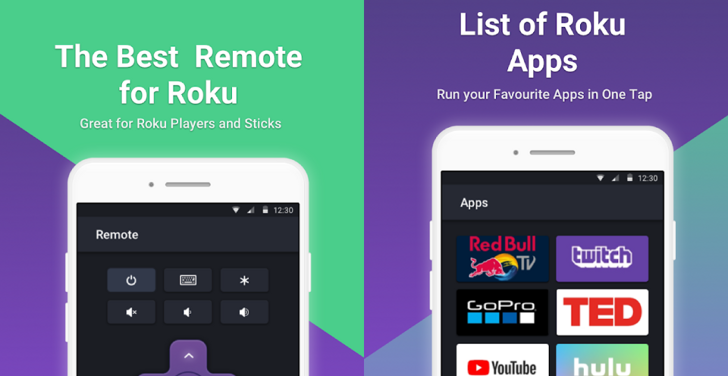
Remote for Roku by Codematics turns your Android phone into a convenient controller for Roku TVs and streaming devices. Connect your phone and Roku device to the same Wi-Fi network, then navigate menus, switch channels, adjust the volume, and open installed apps directly from your screen. Its simple interface and directional controls make everyday viewing easier when the physical remote is missing, out of reach, or out of batteries. It supports devices and televisions running Roku OS, every day.
More Details
Below are some of the notable features of the app:
- Works with televisions, streaming sticks, and other devices running Roku OS.
- Provides directional controls for navigating menus and selecting content.
- Allows users to change channels, adjust the volume, and control viewing.
- Opens apps installed on the connected Roku device directly from the phone.
How to install the application
How to download and install Remote for ROKU TVs Devices Codematics on your mobile device?
Follow these simple steps to get the Remote for ROKU TVs Devices Codematics from Google Play:
- Open Google Play on your Android device.
- Enter Remote for ROKU TVs Devices Codematics in the search bar.
- Choose the most relevant result from the list.
- Tap 'Install' to start the download.
- Wait until the installation is complete, and you're ready to go!
DISCLAIMER
- This application is a mobile tool that does not modify any system settings on your device.
- All APK files available for download from our platform are completely safe.
- We offer the official download link directly from the Google Play Store.
- All trademarks and logos featured on our website belong to their respective owners. We have no affiliation or partnership with them.
- Our website and its content fully adhere to Google's advertising policies and the Google Unwanted Software policy.
Steps to Uninstall android App
How to remove Remote for ROKU TVs Devices Codematics from your mobile device?
You can uninstall the Remote for ROKU TVs Devices Codematics app by following these steps:
- Open the Settings menu on your phone.
- Navigate to "Apps" or "Application Manager."
- Find and select Remote for ROKU TVs Devices Codematics from the list.
- Tap "Uninstall" to remove the app from your device.
Steps to Uninstall App on Apple devices
Delete Remote for ROKU TVs Devices Codematics from your iOS device by following these steps:
- Open your Home Screen or App Library and locate the Remote for ROKU TVs Devices Codematics icon.
- Press and hold the icon until a set of options is displayed.
- Select Remove App from the list.
- Confirm deletion by tapping Delete App.
- Exit the screen by tapping Done or pressing the Home button.
Tips & Tricks
More about the Remote for ROKU TVs Devices Codematics app
- Connect your phone and Roku device to the same Wi-Fi network before opening the app.
- Allow the app to discover nearby devices when prompted.
- Use the directional arrows to navigate Roku menus and select content.
- Keep the app and Roku device software updated if connection problems occur.
- Make sure both devices remain connected to the same network during use.









 Home
Home  Tools
Tools  Finance
  Social
  Games
Games  Communication
  Shopping
  More
More